
Every now and then, I return to an Umbraco version I have not touched for years. Sometimes the project needs to come back online. Sometimes it only needs to run long enough for me to inspect the content model and plan a migration. Either way, before I can review content types, users, installed packages and configuration, I need to sign in to the backoffice.
Old Umbraco projects do not disappear on schedule
Umbraco 6.0.0 was released on 31 January 2013. There is some nostalgia in seeing a project built around web.config, ASP.NET Membership providers and an IIS application pool. But the task is current: restore access, inspect what is running and decide how to move it forward.
In 2026, the official release list recommends Umbraco 17 LTS for most users. I would not choose Umbraco 6 for a new build, but inherited systems create a different problem. Access must be restored before the project can be inspected or migrated. Moving from Umbraco 6 to a current release is closer to a migration than a routine upgrade because the move to ASP.NET Core changed project structure, extension points, deployment and hosting.
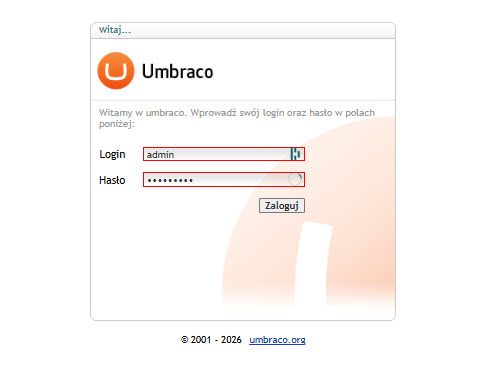
The login screen is familiar. The credentials often are not.
Reset the Umbraco 6 admin password in SQL Server
The first check is not the SQL UPDATE. It is the membership provider that owns backoffice authentication. The procedure below applies when the standard Umbraco 6 user provider is configured with legacy password encoding:
<add name="UsersMembershipProvider"
     type="Umbraco.Web.Security.Providers.UsersMembershipProvider, Umbraco"
     minRequiredNonalphanumericCharacters="0"
     minRequiredPasswordLength="4"
     useLegacyEncoding="true"
     enablePasswordRetrieval="false"
     enablePasswordReset="true"
     requiresQuestionAndAnswer="false"
     passwordFormat="Hashed" />
For this configuration, the password test has the following hash:
W477AMlLwwJQeAGlPZKiEILr8TA=Take a database backup or snapshot before writing directly to umbracoUser. Then verify both the administrator record and the active database. Inherited projects often carry more connection strings and old database copies than their documentation suggests.
SELECT
    DB_NAME() AS CurrentDatabase,
    id,
    userLogin,
    userDisabled,
    userNoConsole
FROM dbo.umbracoUser
WHERE userLogin = 'admin';
Only then set the temporary password and enable backoffice access:
UPDATE dbo.umbracoUser
SET
    userPassword = 'W477AMlLwwJQeAGlPZKiEILr8TA=',
    userDisabled = 0,
    userNoConsole = 0
WHERE userLogin = 'admin';

SELECT @@ROWCOUNT AS UpdatedRows;
UpdatedRows must equal 1. If it does not, stop and inspect the login, database connection and query before continuing.
Recycle the IIS application pool serving the website, then sign in with:
Username: admin
Password: test
Browser tip: test the recovered account in a private or incognito window. This rules out an existing backoffice session or stale cookies while you verify the new credentials.
Change this password immediately. It is public, weak, and intended only for a short recovery window.
The easy-to-miss IIS step
The database change was correct. SQL Server reported one updated row, and the stored hash matched the expected value. The login still failed. It worked after the IIS application pool was recycled.
I did not trace why the running application continued to reject the new password, so I would not describe this as a proven password-cache issue. What I can verify is that the database value was correct and recycling the App Pool restored access in this case.
After changing an Umbraco 6 backoffice user directly in SQL Server, recycle the application pool before deciding that the new hash does not work.
Two similar providers, two different account stores
The provider names are similar, but they authenticate different types of accounts.
Provider | Used for |
|---|---|
| Members who authenticate on the public website |
| Editors and administrators who authenticate at |
For an administrator reset, inspect UsersMembershipProvider. The useful question is not which provider looks familiar. It is which provider owns the login at /umbraco.
Choose a temporary password deliberately
Every password in this table is public. Length and character variety do not turn a published value into a secret. Choose an example only for the stated recovery condition, and replace it immediately after login.
Password | Legacy hash | Best use |
|---|---|---|
|
| The simplest diagnostic option and the value verified in the real recovery. |
|
| A recognizable temporary value for a controlled local environment. |
|
| A longer example for testing the generator. It is still published and must not be treated as a secret. |
Do not use the published passwords on a remotely accessible site. They are examples, not secrets. Generate a hash for a private temporary password and replace it through the backoffice immediately after login.
Generate a legacy hash for your own password
This is a standalone helper method. It does not need to run inside Umbraco. You can paste it into a small console application or a temporary C# test project and run it locally.
Its connection to the Umbraco configuration is the hashing algorithm. When UsersMembershipProvider uses useLegacyEncoding="true", the stored password is produced from the UTF-16LE password bytes using HMAC-SHA1. The method below reproduces that legacy format:
using System;
using System.Security.Cryptography;
using System.Text;

public static string HashUmbracoLegacyPassword(string password)
{
    var passwordBytes = Encoding.Unicode.GetBytes(password);

    using (var hmac = new HMACSHA1(passwordBytes))
    {
        return Convert.ToBase64String(
            hmac.ComputeHash(passwordBytes));
    }
}
Check the helper with a known value
Run it once with test. The output should match the hash already verified in this recovery:
Console.WriteLine(HashUmbracoLegacyPassword("test"));
// Expected: W477AMlLwwJQeAGlPZKiEILr8TA=
If the value is different, do not update the database yet. Check that the method was copied correctly and confirm that the backoffice provider uses useLegacyEncoding="true".
Generate the hash you want to use
Replace the placeholder below with a private temporary password, run the helper, and copy the Base64 result:
var temporaryHash = HashUmbracoLegacyPassword("replace-this-with-your-private-password");

Console.WriteLine(temporaryHash);
Use that result as the userPassword value in the earlier SQL UPDATE. After the first successful login, replace the temporary password through the backoffice.
After the first successful login
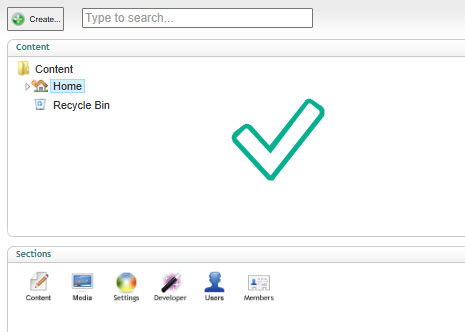
Umbraco 6 backoffice after the first successful login
Change the password through the Umbraco backoffice to a unique value generated by a password manager.
Sign out and verify the new password.
Confirm that the temporary hash is no longer stored in
umbracoUser.
If the login still fails
Read the row back and confirm the expected hash was stored.
Confirm that
userDisabledanduserNoConsoleare both0.Confirm that the deployed application uses the database you updated.
Confirm that
UsersMembershipProviderusespasswordFormat="Hashed"anduseLegacyEncoding="true".Recycle the correct IIS application pool.
Check whether the project replaces the standard provider with custom authentication.
Do not solve the problem by switching to passwordFormat="Clear". That stores a readable password and introduces a second configuration change without identifying why the expected hash failed.
If the recovery succeeds, the access problem is closed. The condition of the application is not. A focused technical audit of the inherited Umbraco project should identify the dependencies and operational risks before anyone commits to stabilization, isolation or migration.


