
Introduction
This article targets Umbraco 13 LTS. The backoffice and authentication architecture changed in later major versions, so do not assume that every implementation detail described here applies unchanged to newer Umbraco releases.
For a standard Umbraco 13 installation, the backoffice idle timeout is configured under the Global settings section. The documented default is 20 minutes. When the user makes a request from the backoffice, the idle timer is reset.
There is one important companion setting: KeepUserLoggedIn. When that security option is disabled, the configured timeout is used to sign out an inactive backoffice user. If KeepUserLoggedIn is enabled, the normal inactivity logout behavior is intentionally disabled.
Tip
Practical starting point: keep the default behavior unless your editors have a real workflow problem. Increase the timeout deliberately, document the reason, and treat long-lived authenticated sessions as a security decision rather than a convenience-only setting.
Configure the Umbraco 13 backoffice idle timeout
The supported configuration lives in appsettings.json under Umbraco, CMS, Global, and TimeOut. Umbraco 13 documentation specifies the value in hours, minutes, and seconds.
{
  "Umbraco": {
    "CMS": {
      "Global": {
        "TimeOut": "00:20:00"
      },
      "Security": {
        "KeepUserLoggedIn": false
      }
    }
  }
}
With this configuration, an inactive user must sign in again after 20 minutes, provided KeepUserLoggedIn remains disabled.
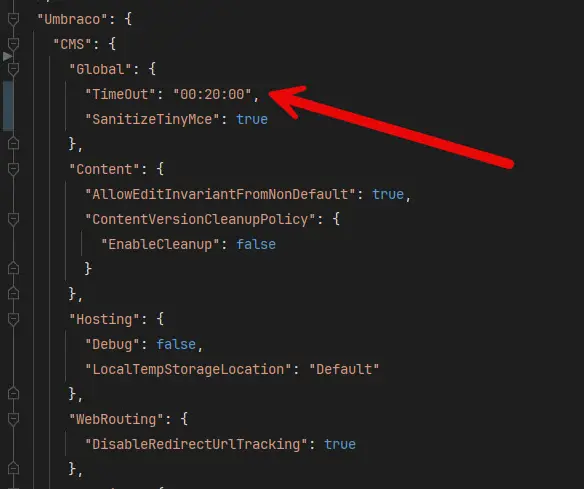
Umbraco 13 backoffice timeout configured in appsettings.json.
TimeSpan examples: hours, days, and practical limits
Umbraco 13 documents the backoffice timeout in HH:MM:SS format, and that is the clearest format to use for normal configuration. The underlying .NET value is a TimeSpan, however, so it is useful to understand how longer durations are represented.
The invariant TimeSpan representation can include an optional day component before the hours. This matters because the hour component itself ranges from 00 to 23. Once a duration reaches a full day, the days are written separately.
Duration | TimeSpan value |
|---|---|
20 minutes | 00:20:00 |
8 hours | 08:00:00 |
24 hours | 1.00:00:00 |
10 days | 10.00:00:00 |
30 days | 30.00:00:00 |
365 days | 365.00:00:00 |
These longer values are useful for understanding TimeSpan syntax, but they should not be interpreted as recommended timeouts for production sessions. For a real back office, choose a duration based on the editor's workflow and security requirements rather than simply using the maximum value the type can represent.
How long can a TimeSpan be?
As a .NET curiosity, TimeSpan has a theoretical maximum value of 10,675,199 days, 2 hours, 48 minutes, 5 seconds, and 4775807 ticks. Its invariant string representation is:
10675199.02:48:05.4775807A valid TimeSpan value is not automatically a valid or sensible timeout for every framework that consumes it. I tried using this maximum value as the Umbraco timeout during testing, and it did not work. Treat that as a practical observation rather than a documented Umbraco limit: the supported Umbraco 13 documentation specifies the normal timeout format as HH:MM:SS and does not promise that every possible TimeSpan value will work as a backoffice timeout.
Tip
Practical rule: use familiar hour-based values for normal Umbraco configuration. If you intentionally use a day-based TimeSpan, test it on the exact Umbraco version and hosting setup you deploy.
If you are curious why the maximum TimeSpan has such an unusual value, there is a useful Stack Overflow discussion about the TimeSpan maximum.
KeepUserLoggedIn changes the timeout behavior
Looking only at the timeout value is incomplete. Umbraco 13 also exposes a security setting named KeepUserLoggedIn.
The Umbraco documentation is explicit: when KeepUserLoggedIn is false, an inactive backoffice user is logged out after the duration configured by the global timeout. This means that increasing the timeout and enabling KeepUserLoggedIn are not equivalent decisions.
Configuration | Expected behavior | Typical use |
|---|---|---|
KeepUserLoggedIn disabled | Inactive users are signed out according to the configured timeout. | Recommended baseline for production backoffice access. |
KeepUserLoggedIn enabled | The inactivity timeout no longer performs the normal automatic sign-out. | Use only when the security implications are understood and accepted. |
Warning
Do not enable KeepUserLoggedIn simply to stop editor complaints about a short timeout. First decide whether the idle timeout itself should be longer. Those are different security choices.
What counts as inactivity?
The Umbraco 13 documentation describes the timeout as the amount of time that can pass without a request being made before the user must log in again. Activity within the back office resets the timer.
This is important for editors. A long period spent reading, researching, or writing outside the browser can legitimately appear to the application as inactivity. A timeout that is reasonable for administrators making short configuration changes may feel too aggressive for editors preparing long-form content.
At the same time, increasing the idle window extends the period during which an unattended authenticated browser can remain useful to another person. The correct value, therefore, depends on both the workflow and the threat model.
Use different timeout values per environment
The timeout is an application-level configuration, not a per-user or per-role value. If developers need a much longer session than production editors do, environment-specific configuration is cleaner than choosing a single compromise value for every deployment.
For example, a development override can use a longer timeout:
{
  "Umbraco": {
    "CMS": {
      "Global": {
        "TimeOut": "08:00:00"
      }
    }
  }
}
Production can keep a shorter value in its own environment-specific configuration or hosting configuration. The exact numbers should come from how the system is used rather than from a universal timeout table.
Environment | Recommended approach | Reason |
|---|---|---|
Local development | A longer timeout can be reasonable. | Frequent debugging and context switching make repeated logins disruptive. |
Staging or UAT | Stay close to production unless testing a deliberate difference. | Authentication behavior should be realistic enough to expose workflow problems before release. |
Production | Use the shortest timeout that still supports the real editorial workflow. | Longer authenticated idle windows increase exposure on unattended devices. |
Security and editor experience
There is no single timeout that is correct for every Umbraco installation. Twenty minutes may be appropriate for one environment and needlessly disruptive in another. The decision should be based on how the back office is accessed and what an authenticated user can do.
Factors that support a shorter timeout
shared or semi-public workstations;
high-privilege administrator accounts;
access to sensitive content or personal data;
weak endpoint controls;
users who frequently leave devices unattended.
Factors that can justify a longer timeout
trusted managed devices with enforced screen locking;
editors who spend long periods composing or reviewing content;
development environments that do not expose production data;
strong account security and tightly controlled back-office access.
An idle timeout is only one layer. It does not replace HTTPS, strong authentication, appropriate permissions, device screen locks, account lockout policies, or good operational discipline.
Note
Better policy: make the timeout a documented security setting with an owner and a reason. Revisit it when the editorial workflow, device policy, or risk profile changes.
How to test the timeout
Use a non-production environment or a test account.
Set a short temporary timeout so you do not need to wait for the normal production interval.
Sign in to the backoffice and then stop interacting with it.
Wait longer than the configured idle period.
Return to the backoffice and perform an action that requires authentication.
Confirm that Umbraco requires a new login.
Repeat the test after enabling normal back-office activity, and confirm that the activity resets the idle period.

Umbraco 13 login screen after the configured idle timeout has expired.
After testing, restore the intended environment value. Do not leave an artificially short diagnostic timeout in production configuration.
Frequently Asked Questions
What is the default Umbraco 13 backoffice timeout?
The documented default is 20 minutes.
Does backoffice activity reset the timeout?
Yes. Umbraco documents the value as an idle timeout and states that backoffice activity resets the timer.
Is the timeout configured per user or role?
No. It is an application-level global setting for the Umbraco instance.
Why am I not being logged out even though a timeout is configured?
Check the KeepUserLoggedIn security setting. If it is enabled, the normal inactivity-based sign-out is intentionally disabled.
Should development and production use the same timeout?
Not necessarily. Development can reasonably use a longer value, while production should reflect the organization's actual security and editorial requirements.
Is a longer timeout automatically insecure?
No, but it increases the time an unattended authenticated browser can remain available. Device controls, account privileges, physical access, authentication strength, and the sensitivity of the back office all matter.
References
Conclusion
Umbraco 13 gives you a simple global idle-timeout setting, but the operational decision is not simply “20 minutes or eight hours.” You also need to understand KeepUserLoggedIn, how your editors actually work, and the risks of leaving an authenticated back office unattended.
Start from the documented default, change it only for a clear reason, use environment-specific values when development needs differ from production, and test the behavior rather than assuming the configuration works the way you expect.


