
Why Sorting in Umbraco Matters
Content trees rarely stay small. A section that begins with five pages can eventually contain dozens of articles, landing pages, products, categories, or reusable content items. Media folders can grow even faster.
Sorting gives editors a straightforward way to keep sibling items in a useful order without asking a developer to change code or manipulate data.
It is particularly useful when:
the order of child pages matters on the website;
editors want related nodes grouped together in the backoffice;
a media folder contains many assets that are easier to find alphabetically;
new items need to be moved into an established sequence;
a long list needs to be reordered by name or creation date.
Important
tree order and front-end order are related only when your implementation uses Umbraco's node order. A template or query can deliberately apply a different ordering, such as publication date, title, priority, or another property.
How to Reorder Content and Media Manually
Use manual sorting when editors need a deliberate custom sequence rather than a simple alphabetical or date-based order.
Find the parent item. Open the section of the content or media tree that contains the items you want to reorder.
Open the sorting action. Use the available sort action for the parent or folder. The exact placement can vary between Umbraco backoffice versions.
Review the child items. The sorting interface shows the sibling items whose order can be changed.
Drag items into the required order. Move individual items until the sequence matches the intended editorial order.
Save the new order. Confirm the change so Umbraco persists the updated sorting values.
This works well for navigation items, featured pages, categories, manually curated lists, and other structures where editors need precise control.
Sort Items by Name or Creation Date
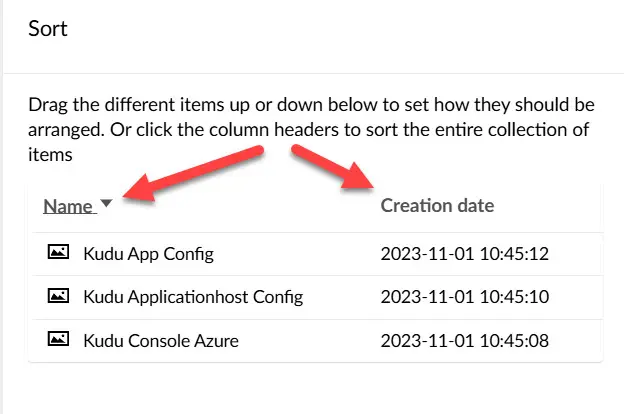
Sorting Umbraco Items Alphabetically or by Date
Dragging items one by one becomes inefficient when a parent contains many children. The sorting interface can also help establish a predictable order based on item metadata.
Sort alphabetically
Use the Name option or column in the sorting interface to arrange sibling items by their names. This is useful for large media folders, categories, reference data, and other collections where alphabetical order makes items easier to locate.
Sort by creation date
Where the sorting interface exposes creation date, use it to arrange items according to when they were created. Depending on the available direction, this can place older or newer items first.
After choosing the required ordering, save the changes to persist the resulting sequence.
Tip
establish an alphabetical or date-based order first, then make small manual adjustments instead of dragging every item from scratch.
Content and Media: The Same Principle
Sorting is useful in both major back-office trees, but the reasons for sorting often differ.
Content: order can represent editorial priority, navigation sequence, curated lists, categories, or another business-defined hierarchy.
Media: order is commonly used to make folders easier for editors to browse and maintain, especially when many similarly named assets exist.
In both cases, keep the tree's purpose clear. Sorting should support the way editors work rather than compensate for an unnecessarily complicated information architecture.
What Sorting Means for Your Website
An important distinction for developers is that the order editors see in the Umbraco tree does not automatically define every list rendered on the website.
If your code enumerates children in their native Umbraco order, editorial sorting can influence the rendered sequence. If the query applies its own ordering, that explicit rule takes precedence.
For example, a blog may intentionally order articles by publication date, a custom priority property, title, featured status, or another domain-specific value.
Decide which layer owns the order. If editors are expected to control it, make that behavior obvious in the CMS and avoid silently overriding their choices in the presentation layer.
Practical Tips for Editors and Developers
Use logical grouping before relying on sorting
A well-designed tree is easier to manage than one enormous parent containing hundreds of unrelated children. Use folders, categories, or meaningful content structure where appropriate.
Choose a predictable convention
If a collection should always be alphabetical, keep it alphabetical. If editors manually curate the order, document that expectation.
Do not treat tree position as an SEO technique
Moving a page higher in the Umbraco backoffice tree does not by itself improve search rankings. SEO depends on the published website, including crawlability, internal linking, content quality, page experience, and relevance.
Check the front-end implementation
Before telling editors that sorting controls a website component, verify how that component retrieves and orders its data. Explicit application-level ordering may intentionally ignore the stored sequence of nodes.
Review large trees periodically
Sorting helps usability, but it cannot fix poor content architecture. Archive obsolete items and reorganize sections when the tree itself becomes difficult to understand.
Conclusion
Umbraco's sorting tools give editors direct control over the order of sibling content and media items. For small curated collections, drag-and-drop ordering is simple and precise. For larger collections, sorting by name or creation date can establish a useful sequence much faster.
The key is to distinguish back-office organization from front-end presentation. Use tree order when editorial control is intentional, and explicit application-level sorting when the website needs a different business rule.


