
Quick answer: where are Azure App Service FTPS credentials?
Credentials: App Service → Deployment → Deployment Center → FTPS Credentials
If FTP authentication is disabled: Settings → Configuration → General settings, then enable both SCM Basic Auth Publishing Credentials and FTP Basic Auth Publishing Credentials.
In the Application-scope section, you can find the FTPS endpoint, FTPS username, and password generated for the selected App Service or deployment slot.
You need at least Contributor-level permissions on the App Service to access or manage deployment credentials. Application-scope credentials belong to a specific app, while user-scope credentials belong to your Azure user and can be used with App Services you are authorized to access.
How to find Azure App Service FTPS credentials
Sign in to the Azure Portal.
Open the App Service you want to access.
In the left navigation, expand Deployment.
Select Deployment Center.
Open the FTPS Credentials tab.
Under Application-scope, copy the FTPS endpoint, FTPS username, and Password.
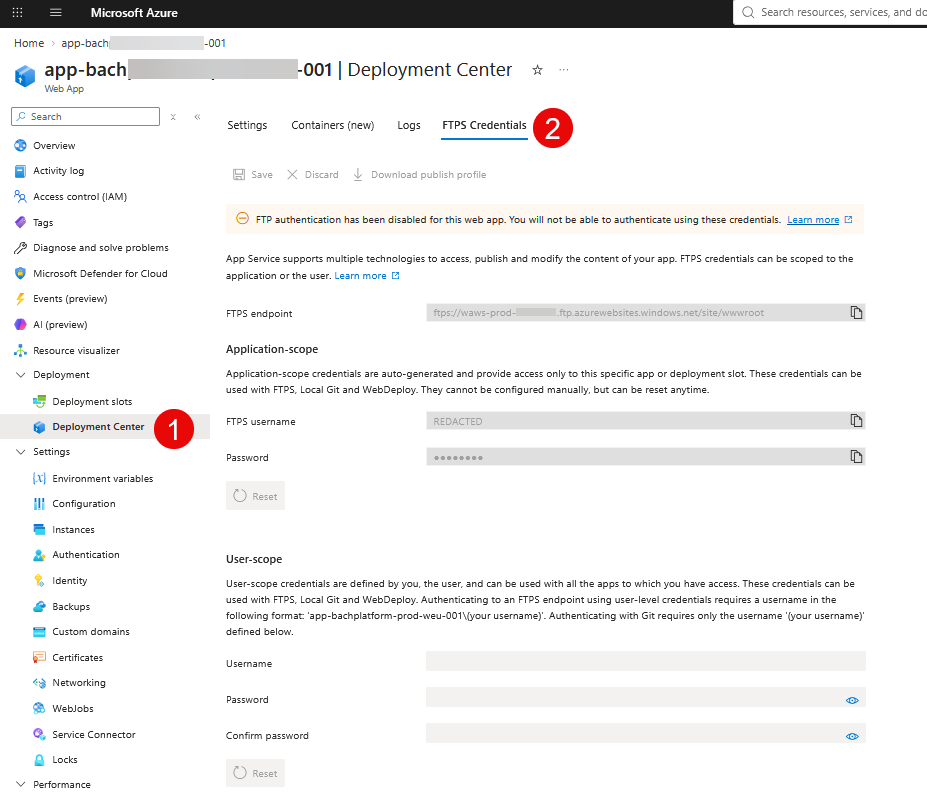
The current Azure App Service Deployment Center → FTPS Credentials view. The Application-scope section contains the FTPS endpoint, username, and password for this specific App Service or deployment slot.
For a typical one-off connection to a specific App Service, application-scope credentials are usually the most direct option because they are limited to that app or deployment slot.
FTPS endpoint vs deployment directory: copy the FTPS endpoint from Deployment Center and connect with your FTP/S client. When deploying application files, App Service expects them under /site/wwwroot (or /site/wwwroot/App_Data/Jobs/ for WebJobs). The deployment directory is not simply part of the endpoint definition.
Application-scope vs user-scope credentials
Azure App Service exposes two different deployment credential scopes. They are easy to confuse because both appear on the same FTPS Credentials screen.
Application-scope credentials
Application-scope credentials are automatically generated for an individual App Service. They provide access only to that app or deployment slot and cannot be manually chosen, although the password can be reset.
For FTP/S, the application-scope username follows this format:
<app-name>\$<app-name>If you only need to connect to one App Service, this scope keeps the credential tied to that specific resource instead of reusing a single user-level deployment credential across multiple apps.
User-scope credentials
User-scope credentials are associated with your Azure user rather than one App Service. They can be used with App Services that your account is authorized to access and that allow the required Basic Authentication publishing methods.
For FTP/S, the user-scope username must identify both the app and your deployment username:
<app-name>\<username>Unlike the application-scope password, a forgotten user-scope password is not displayed by the portal. You set or reset it instead.
How to enable FTP/FTPS publishing credentials in Azure App Service
If the FTPS Credentials tab shows the endpoint and credentials but Azure warns that FTP authentication is disabled, the credentials cannot be used yet. For FTP/S publishing, Microsoft requires both SCM Basic Auth Publishing Credentials and FTP Basic Auth Publishing Credentials to be enabled.
In the current Azure Portal:
Open your App Service.
Go to Settings → Configuration.
Open the General settings tab.
Set SCM Basic Auth Publishing Credentials to On.
Set FTP Basic Auth Publishing Credentials to On.
For FTP state, prefer FTPS only if you need FTP/S access.
Select Save and confirm the configuration change.
Return to Deployment → Deployment Center → FTPS Credentials.
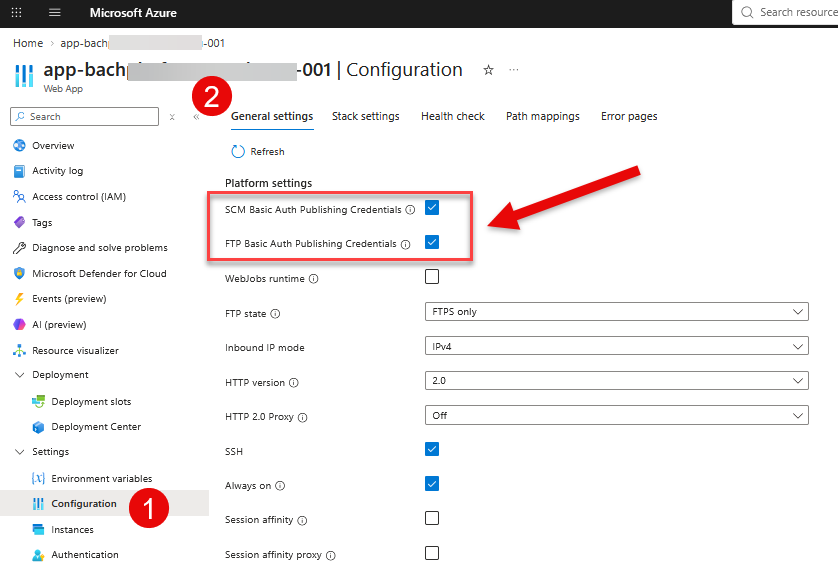
In Settings → Configuration → General settings, enable both SCM Basic Auth Publishing Credentials and FTP Basic Auth Publishing Credentials. Microsoft requires both settings to be On for FTP/S publishing. SCM Basic Authentication is also a prerequisite for enabling FTP Basic Authentication.
Security note: Basic Authentication is less secure than identity-based deployment methods and is disabled by default for new App Service apps. Enable these settings only when your workflow actually requires FTP/S or another Basic Authentication publishing method.
Verify that the FTPS credentials are active
After saving the settings, return to Deployment Center → FTPS Credentials. The previous warning that FTP authentication is disabled should no longer prevent the application-scope credentials from being used.
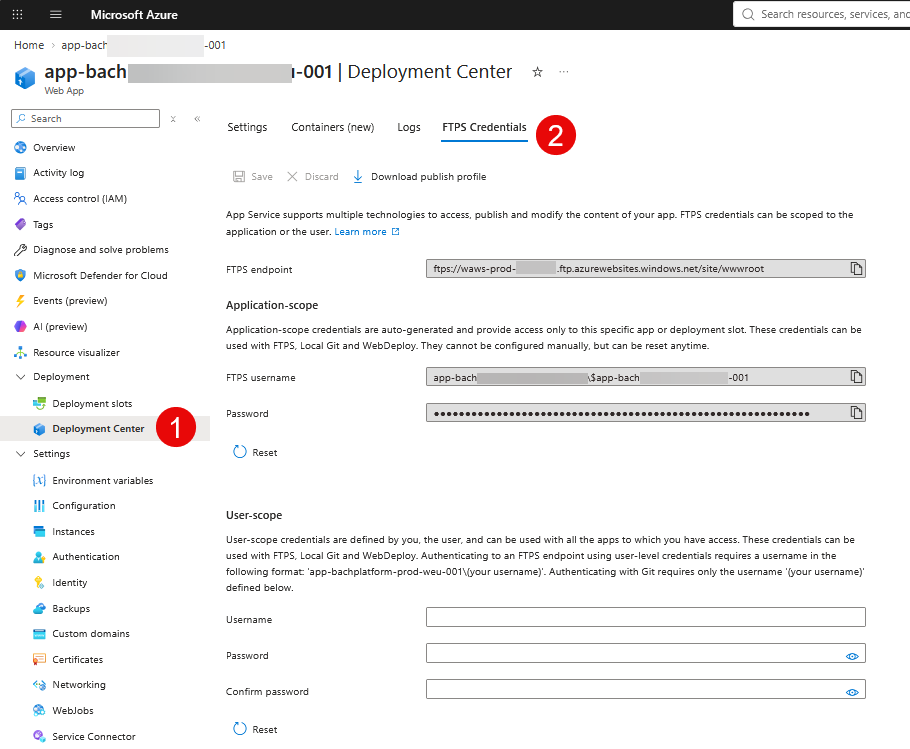
Return to Deployment Center → FTPS Credentials after saving the Basic Authentication settings. The application-scope FTPS endpoint, username, and password can now be used for FTP/S authentication.
Why are there two Basic Auth settings?
Azure separates the publishing policies. FTP Basic Auth Publishing Credentials controls Basic Authentication for FTP deployment. SCM Basic Auth Publishing Credentials controls Basic Authentication for SCM/Kudu-based publishing methods and is also required before FTP Basic Authentication can be enabled. This is why enabling only the FTP setting is not sufficient.
Retrieve App Service publishing credentials with Azure CLI
You do not have to use the Azure Portal. Application-scope publishing profiles, including FTP/S deployment information, can also be retrieved with Azure CLI:
az webapp deployment list-publishing-profiles \
  --resource-group <resource-group> \
  --name <app-name>
If you specifically need the FTP/S endpoint, you can filter the publishing profiles:
az webapp deployment list-publishing-profiles \
  --name <app-name> \
  --resource-group <resource-group> \
  --query "[?ends_with(profileName, 'FTP')].{profileName: profileName, publishUrl: publishUrl}"
If the command returns two FTP profiles, use the read-write endpoint. Microsoft specifically advises not to use the endpoint containing dr when the profile name indicates ReadOnly.
Treat the command output as sensitive because publishing profiles can contain credentials. Avoid copying them into source control, build logs, tickets, chat messages, or other long-lived locations.
Should you use FTP/FTPS for Azure App Service deployment?
FTPS can still be useful for manual maintenance, troubleshooting, legacy deployment workflows, or cases where you explicitly need direct file access. If you use it, prefer FTPS so the connection is protected with TLS.
For automated deployments, FTP/S with long-lived Basic Authentication credentials should not be the default choice. Microsoft recommends Microsoft Entra-based authentication where supported. For GitHub Actions, OpenID Connect with a user-assigned identity is the recommended option; service principals and publish profiles are additional supported choices.
In other words, the FTPS Credentials tab is still useful, but the security context around it has changed. A current App Service may deliberately have FTP authentication disabled, and that is often the correct production configuration.
References
Manage deployment credentials for Azure App Service — application-scope and user-scope credentials, required permissions, username formats, and Basic Authentication requirements.
Deploy content using FTP/S in Azure App Service — FTPS endpoint retrieval, Azure CLI query, read-write vs ReadOnly endpoints, deployment directory, and FTPS-only configuration.
Disable basic authentication for Azure App Service deployments — FTP and SCM Basic Authentication policies and Microsoft Entra-based deployment guidance.
Azure CLI: az webapp deployment — official command reference for list-publishing-profiles and related publishing credential commands.
Deploy to Azure App Service using GitHub Actions — OpenID Connect and identity-based authentication recommendations for automated deployments.
Summary
To find Azure App Service FTP/FTPS credentials, open Deployment Center → FTPS Credentials. If Azure reports that FTP authentication is disabled, go to Settings → Configuration → General settings, enable both SCM Basic Auth Publishing Credentials and FTP Basic Auth Publishing Credentials, save the configuration, then return to Deployment Center.
For production systems, prefer FTPS over plain FTP when FTP/S is required and keep Basic Authentication disabled when it is not needed. For modern automated deployment pipelines, prefer identity-based authentication where the deployment method supports it.


