
What Is Response Compression?
Response compression reduces the size of HTTP response bodies before they travel over the network. For compressible content such as HTML, CSS, JavaScript, JSON, XML, and plain text, this can significantly reduce transferred bytes.
Browsers advertise supported algorithms through the Accept-Encoding request header. The server can then return a compressed representation and indicate the selected algorithm in Content-Encoding.
Tip
Do not compress everything. Formats such as JPEG, WebP, AVIF, MP4, ZIP, and many other binary formats are already compressed and usually gain little or nothing from HTTP response compression.
Enable Brotli and Gzip in ASP.NET Core
ASP.NET Core includes Response Compression Middleware and built-in Brotli and Gzip providers. In current ASP.NET Core applications, no separate compression package is normally required when using the shared framework.
A complete Program.cs example can look like this:
using System.IO.Compression;
using Microsoft.AspNetCore.ResponseCompression;

WebApplicationBuilder builder = WebApplication.CreateBuilder(args);

builder.Services.AddResponseCompression(options =>
{
    options.EnableForHttps = true;

    options.Providers.Add<BrotliCompressionProvider>();
    options.Providers.Add<GzipCompressionProvider>();

    options.MimeTypes =
        ResponseCompressionDefaults.MimeTypes.Concat(
            new[]
            {
                "application/javascript"
            });
});

builder.Services.Configure<BrotliCompressionProviderOptions>(options =>
{
    options.Level = CompressionLevel.Fastest;
});

builder.Services.Configure<GzipCompressionProviderOptions>(options =>
{
    options.Level = CompressionLevel.Fastest;
});

WebApplication app = builder.Build();

app.UseResponseCompression();

app.UseStaticFiles();

app.MapGet("/", () => "Hello World!");

await app.RunAsync();
UseResponseCompression() must run before middleware whose responses you want compressed. If you want ASP.NET Core middleware to compress static files, place it before UseStaticFiles().
Keep the default MIME types unless you need to extend them
You normally do not need to configure options.MimeTypes. ASP.NET Core already provides a baseline list for the common case. The current ResponseCompressionDefaults.MimeTypes source includes:
text/plain
text/css
application/javascript
text/javascript
text/html
application/xml
text/xml
application/json
text/json
application/wasm
Therefore, adding application/javascript again is redundant. Replacing the defaults with a shorter hand-written list is usually worse because it can remove built-in types such as XML, text/javascript, text/json, and WebAssembly.
Tip
Recommended rule: keep ResponseCompressionDefaults.MimeTypes unchanged unless your application returns an additional compressible content type that is not already included.
When you genuinely need another type, extend the defaults rather than rebuilding the entire list:
options.MimeTypes =
    ResponseCompressionDefaults.MimeTypes.Concat(
        new[]
        {
            "image/svg+xml"
        });
This preserves the framework defaults while making the application-specific addition explicit. Microsoft uses the same pattern in its response compression documentation. Wildcard MIME types such as text/* aren't supported.
Do you need to register both providers explicitly?
Not necessarily. When no compression providers are explicitly added, ASP.NET Core automatically includes its built-in providers. Explicit registration is useful when you want the configuration to be obvious or when you also register custom providers.
The provider order matters because ASP.NET Core evaluates configured providers in priority order while negotiating a supported response encoding.
Choose the compression level deliberately
Brotli and Gzip providers default to a fast compression level. That is a reasonable default for dynamically generated responses because higher compression levels consume more CPU.
CompressionLevel.Optimal or CompressionLevel.SmallestSize can reduce payloads further, but they are not automatically the best production choice for every dynamic endpoint. Measure CPU costs and transfer savings under realistic traffic conditions.
HTTPS Compression: Security Considerations
ResponseCompressionOptions.EnableForHttps defaults to false. Setting it to true enables middleware compression for HTTPS responses.
Warning
This setting deserves a security review. Microsoft warns that compressing HTTPS responses that contain remotely manipulable content can introduce compression side-channel risks. Do not turn it on mechanically for responses that combine secrets with attacker- controlled data.
For ordinary public HTML, CSS, JavaScript, and API responses that do not expose secret-dependent compressed output, HTTPS response compression is widely used. The important point is to understand the response content and threat model rather than treating EnableForHttps = true as a universal requirement.
Check Whether Compression Is Working
Validate with Chrome DevTools
Open the application in Chrome.
Open DevTools and select the Network tab.
Reload the page.
Select an HTML, CSS, JavaScript, or JSON request.
Inspect the response headers.
Look for one of these values:
Content-Encoding: br

Content-Encoding: gzip
Also check the request's Accept-Encoding header. Compression is negotiated with the client. A response is not expected to be compressed when the client does not advertise a supported encoding.

Chrome DevTools: checking the response Content-Encoding header.
Validate with GiftOfSpeed
The external GiftOfSpeed Gzip/Brotli Compression Test is a convenient secondary check for a publicly accessible URL.

GiftOfSpeed: checking Brotli/Gzip compression.
Brotli vs. Gzip
Brotli and Gzip both provide lossless compression, but they should not be reduced to a rule such as “Brotli for static files, Gzip for APIs.” Either algorithm can be used for dynamic or static compressible responses.
Characteristic | Brotli | Gzip |
|---|---|---|
Compression ratio | Often better for web text at comparable settings | Usually larger output than Brotli |
Compression CPU cost | Can be higher, especially at aggressive levels | Generally predictable and fast |
Browser support | Broad in current browsers | Extremely broad, including older clients |
ASP.NET Core support | Built-in provider | Built-in provider |
Typical strategy | Prefer when negotiated and operationally appropriate | Fallback for compatible clients |
The actual compressed size varies with the payload and compression level. Avoid publishing fixed percentages as universal expectations. Measure your own HTML, JSON, CSS, and JavaScript responses.
Benefits and Limitations of Response Compression
Smaller network transfers
The primary benefit is straightforward: less data travels between the server and client. This is particularly valuable on slower or high-latency connections and for large text responses.
Potentially faster delivery
Reducing the number of transferred bytes can improve response transfer time. The final performance effect depends on payload size, network conditions, server CPU, caching, CDN configuration, and compression level.
Lower bandwidth consumption
Sending fewer bytes can reduce outbound bandwidth usage and, depending on the hosting or CDN pricing model, may reduce transfer cost.
SEO impact is indirect
Compression is a performance optimization, not a standalone switch for search ranking. SEO auditing platforms may flag uncompressed pages because excessive transfer size can hurt user experience and performance. The useful goal is a faster, more efficient site rather than satisfying a compression check for its own sake.
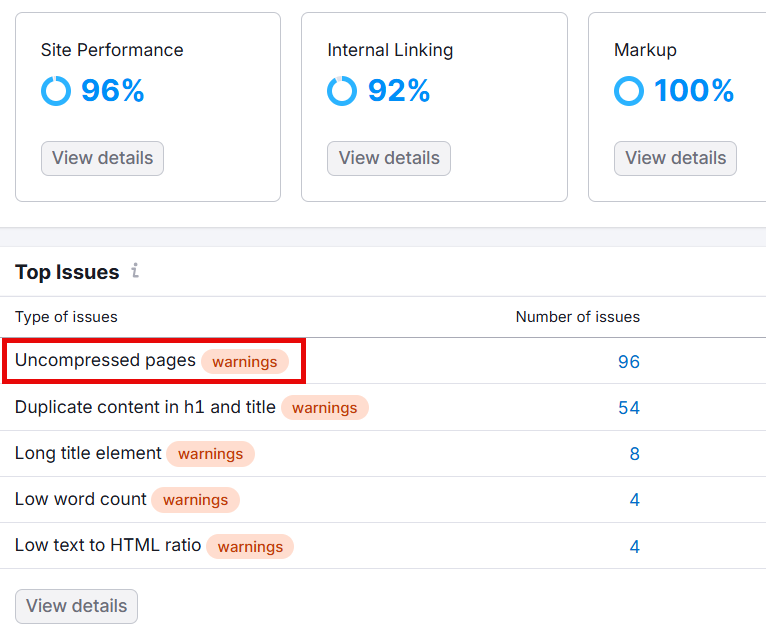
Semrush: an example of an “Uncompressed pages” site-audit warning.
Note
Compression does not directly fix CLS. Cumulative Layout Shift is primarily about unexpected visual movement caused by layout changes. Response compression can improve transfer efficiency, but it should not be presented as a specific CLS remedy.
Azure App Service on Linux
When the application runs on Azure App Service for Linux, compression can also interact with the platform's front-end web server and container configuration. Before assuming ASP.NET Core middleware is the only layer involved, check the effective headers returned by the deployed application.
Note
Recommended external reference: Anthony Salemo's Compression on App Service Linux from the Azure OSS Developer Support team is an excellent practical guide to the platform-specific side of this topic.
References
Conclusion
ASP.NET Core makes Brotli and Gzip response compression straightforward to enable, but production configuration deserves more thought than simply adding two providers and selecting the strongest compression level.
Place the middleware where it can see the responses you intend to compress, keep MIME types deliberate, review HTTPS compression for sensitive responses, and balance CPU usage against transfer savings.
Finally, verify the deployed result. Content-Encoding in DevTools and an external check such as GiftOfSpeed tell you far more than assuming the middleware configuration is active.

