
Quick answer: import the current SqlServer PowerShell module, create an SMO Login with LoginType set to WindowsUser, call Create(), and add the login to sysadmin only when the account genuinely requires full SQL Server administrative access.
Login Failed for User When Connecting to SQL Server on Windows
A typical symptom is:
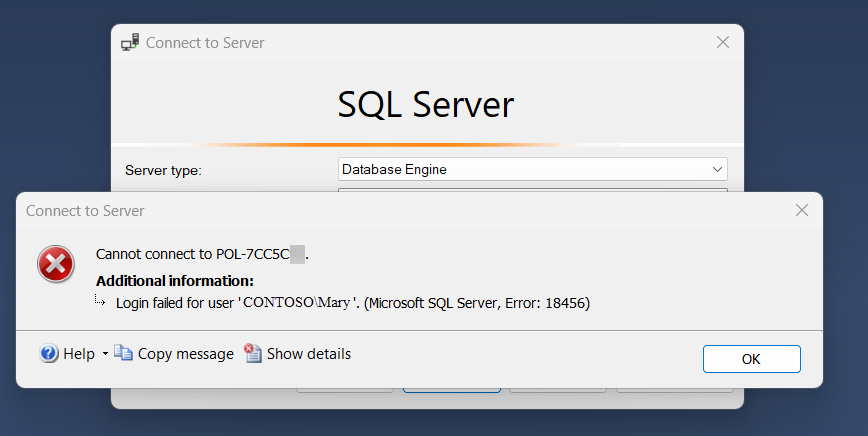
A Windows account can exist in Active Directory but still have no SQL Server login.
Login failed for user 'DOMAIN\Username'.
(Framework Microsoft SqlClient Data Provider)
This message has several possible causes. The procedure below addresses the specific case where the Windows principal exists but a SQL Server login for that principal still needs to be created.
If you prefer the graphical workflow, use SSMS instead. The PowerShell approach is useful when the operation needs to be repeatable or automated.
Recommended PowerShell Approach
Microsoft's current SQL Server PowerShell module is SqlServer. Importing it is also Microsoft's preferred mechanism for loading the SQL Server Management Objects (SMO) assemblies used by the original script.
The example below creates a Windows-authenticated SQL Server login for an existing domain account and then adds that login to the sysadmin fixed server role:
# Import the SQL Server module
Import-Module SqlServer

# Define variables
$serverInstance = "POL-7CC5CXX" # Your SQL Server instance name
$domainUser = "CONTOSO\Mary" # The domain user you want to create a login for

# Connect to the SQL Server instance
$sqlServer = New-Object -TypeName Microsoft.SqlServer.Management.Smo.Server -ArgumentList $serverInstance

# Create a new login object for the domain user
$newLogin = New-Object -TypeName Microsoft.SqlServer.Management.Smo.Login -ArgumentList $sqlServer, $domainUser

# Set the login properties for a Windows-authenticated user
$newLogin.LoginType = [Microsoft.SqlServer.Management.Smo.LoginType]::WindowsUser

# Create the login on the SQL Server instance
$newLogin.Create()

# Add the login to the sysadmin server role
$sysadminRole = $sqlServer.Roles["sysadmin"]
$sysadminRole.AddMember($domainUser)

# Output the result
Write-Output "Login for $domainUser created and added to sysadmin role successfully on $serverInstance."
The important operations are LoginType::WindowsUser, which configures Windows Authentication, Create(), which creates the SQL Server login, and AddMember(), which adds the login to the selected server role.
Important: this particular script intentionally grants sysadmin. Use it only when the Windows account really should be a SQL Server administrator. The login creation itself and the decision to grant full administrative privileges are separate concerns.
SQL Server PowerShell uses Windows Authentication by default when connecting to the Database Engine. Run the script under an account that has sufficient SQL Server permissions to create the login and modify the sysadmin role.
Granting sysadmin Is a Separate Decision
The preserved script does two things: it creates a Windows-authenticated SQL Server login and then adds that login to sysadmin. The second operation is powerful and should be deliberate.
sysadmin is unrestricted. Members of this fixed server role can perform any activity on the SQL Server instance. Do not grant sysadmin merely to make a connection error disappear.
If the account only needs access to a particular database or a limited set of operations, create the login and grant narrower permissions instead. This article intentionally does not introduce a second automation script for that scenario, because the appropriate permissions depend on the application and environment.
Installing the SqlServer PowerShell Module
If PowerShell reports that the SqlServer module cannot be loaded because no valid module file was found, install the current module from the PowerShell Gallery.
Install-Module -Name SqlServer -Scope CurrentUserWith Windows PowerShell, -Scope CurrentUser installs the module for the current user and avoids requiring elevation. If command-name conflicts occur with another installed module, Microsoft documents -AllowClobber as an option.
Verify the installed versions with:
Get-Module SqlServer -ListAvailable
Verify that the SqlServer module is available before running the script.
Permissions Required to Create the Login
The exact permission required to create a login depends on the SQL Server version. Current SQL Server documentation includes CREATE LOGIN for SQL Server 2022 and later, while older versions commonly rely on ALTER ANY LOGIN or appropriate fixed server-role membership. Adding a login to sysadmin has separate, highly privileged requirements. Run administrative scripts from a deliberately privileged account rather than broadening the target user's permissions unnecessarily.
Common Problems
The script still returns Login failed for user
Confirm that the login was created on the same SQL Server instance the application is connecting to, and verify the exact Windows principal name.
The login exists but cannot open the application database
A server login does not automatically grant access to every database. Create a database user mapped to the login and grant only the permissions the application requires.
Import-Module cannot find SqlServer
Install the module from the PowerShell Gallery and verify it with Get-Module SqlServer -ListAvailable.
Should the script add every new login to sysadmin?
No. Treat sysadmin as an explicit administrative requirement, not as a troubleshooting shortcut.


