
What This Authentication Flow Actually Does
This approach does not read WordPress password hashes or validate them inside .NET. Instead, the .NET application sends a username and password to WordPress. The JWT plugin delegates credential verification to WordPress and returns a token when authentication succeeds.
The key endpoint
POST /wp-json/jwt-auth/v1/token accepts a username and password. A successful response contains a JWT that can be used for authenticated REST API requests.
This is useful when WordPress remains the source of truth for user credentials while another application, such as a .NET service or CMS integration, needs to authenticate those users.
When This Pattern Makes Sense
The pattern is particularly useful in cross-platform systems where WordPress owns user accounts, but a .NET application needs to confirm credentials or obtain a WordPress JWT.
Custom authentication flows: a .NET application needs WordPress to remain the authority for credentials.
WordPress REST API integrations: the application needs an access token before calling protected WordPress endpoints.
Multi-platform environments: WordPress is one part of a broader .NET ecosystem.
Migration and coexistence projects: a custom CMS or an Umbraco application must temporarily work with WordPress user accounts.
Not automatically single sign-on
Receiving a WordPress JWT is an authentication building block. A complete SSO design also needs a session lifecycle, token storage, expiration, logout, account mapping, and authorization rules.
Step 1: Create a WordPress User for the Integration Test
Start with a dedicated WordPress account and use its credentials during development. The original example creates a user for the integration before making any calls from .NET.
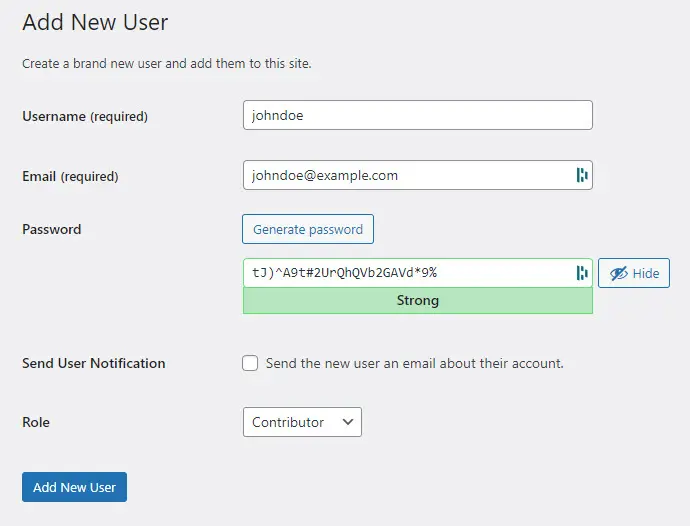
Creating a new WordPress user for the integration. The account created in WordPress becomes the test identity later passed to the JWT token endpoint from the .NET application. Using a dedicated development account keeps the authentication test isolated from administrator credentials.
Once the account exists, the next step is exposing a WordPress REST endpoint that can validate those credentials and issue a token.
Step 2: Install JWT Authentication for WP REST API
Install and activate JWT Authentication for WP REST API from the WordPress plugin directory. The plugin adds the /jwt-auth/v1 namespace and the token endpoint used by the C# client.
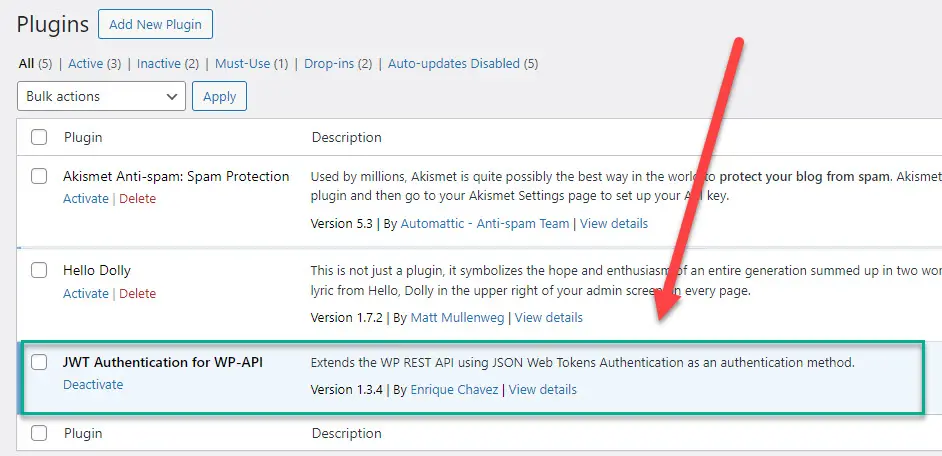
Installing JWT Authentication for WP REST API in WordPress Admin. After activation, the plugin exposes /wp-json/jwt-auth/v1/token to issue a JWT from valid WordPress credentials and /wp-json/jwt-auth/v1/token/validate to validate tokens.
Step 3: Configure wp-config.php for JWT Authentication
The plugin requires a secret used to sign JWTs. It also supports a CORS flag to allow cross-origin browser requests.
Add the configuration to wp-config.php. The code below is the configuration used in the original implementation.
define('JWT_AUTH_SECRET_KEY', 'ttyox9-1H_H5v8a7X7JJxxTBEQVhcwDauuzyGANfIpKwu6duC_qKKHtKWyuMly8yKzZOhzGq0V4r61ZH4ClPiA');
define('JWT_AUTH_CORS_ENABLE', true);JWT_AUTH_SECRET_KEY: signs the JWT. Use a long, random, unique value and keep it secret.JWT_AUTH_CORS_ENABLE: enables the plugin's CORS support. It is relevant to browser-based cross-origin calls, not ordinary server-to-serverHttpClientrequests.
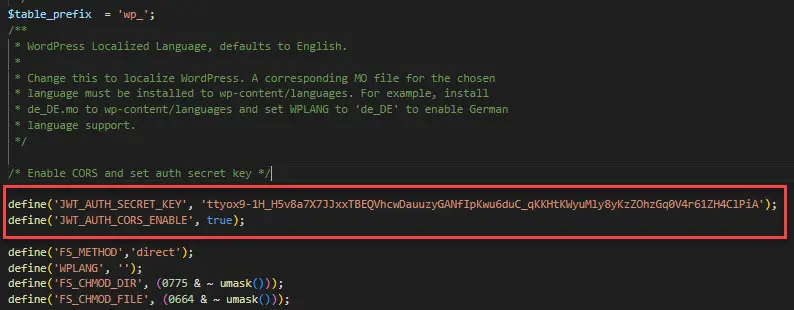
Configuring wp-config.php with the two JWT settings. JWT_AUTH_SECRET_KEY provides the signing secret, while JWT_AUTH_CORS_ENABLE enables the plugin's CORS behavior when cross-origin browser access is required.
Protect the signing secret
Do not publish or reuse a production JWT secret. If a secret is exposed, rotate it and account for the fact that tokens signed with the old secret may no longer validate.
Step 4: Implement the WordPress Authentication Client in C#
The WordPressAuthentication class sends form-encoded credentials to the JWT token endpoint and returns true when WordPress responds with a successful HTTP status code.
public class WordPressAuthentication
{
    public static async Task<bool> ValidateUserAsync(
        string username,
        string password,
        string wordpressSiteUrl)
    {
        using (HttpClient client = new HttpClient())
        {
            client.BaseAddress = new Uri(wordpressSiteUrl);

            // Prepare the login request
            var content = new FormUrlEncodedContent(new[]
            {
                new KeyValuePair<string, string>("username", username),
                new KeyValuePair<string, string>("password", password)
            });

            // Send the login request
            HttpResponseMessage response = await client.PostAsync("/wp-json/jwt-auth/v1/token", content);

            var responseContent = await response.Content.ReadAsStringAsync();

            //Deserialize token
            var tokenResponse = JsonSerializer.Deserialize<TokenResponse>(responseContent);

            if (response.IsSuccessStatusCode)
            {
                // User authentication succeeded

                return true;
            }
            else
            {
                // User authentication failed
                return false;
            }
        }
    }

    public class TokenResponse
    {
        [JsonPropertyName("token")]
        public string Token { get; set; }
    }
}
The request is sent to /wp-json/jwt-auth/v1/token. The response body is deserialized into TokenResponse, and a successful status is treated as valid credentials.
The sample validates credentials, but does not use the token yet
The class deserializes the JWT response but ultimately returns only a boolean. If the calling application needs to access protected WordPress REST endpoints, return or securely store the token as part of the authentication result instead of discarding it.
Step 5: Verify the Authentication Flow with xUnit
Because the test calls a real WordPress site over HTTP, it is best described as an integration test. It verifies the complete path from .NET through the JWT endpoint to WordPress credential validation.
Keep credentials out of source control and logs
Use dedicated test credentials from a secure configuration source. Do not log passwords in real test suites, CI output, application logs, or support diagnostics.
public class WordPressAuthenticationTests
{
    private readonly ITestOutputHelper _testOutputHelper;

    public WordPressAuthenticationTests(ITestOutputHelper testOutputHelper)
    {
        _testOutputHelper = testOutputHelper;
    }

    [Fact]
    public void WhenRightCredentialsProvidedReturnTrue()
    {
        string username = "johndoe@example.com";
        string password = "tJ)^A9t#2UrQhQVb2GAVd*9%";
        string wordpressSiteUrl = "https://wordpress-734044-4080664.cloudwaysapps.com";

        var wpUserPasswordIsValid = WordPressAuthentication
            .ValidateUserAsync(username, password, wordpressSiteUrl)
            .Result;

        _testOutputHelper.WriteLine($"{username} password {password} is valid: {wpUserPasswordIsValid}");

        wpUserPasswordIsValid.Should().BeTrue();
    }
}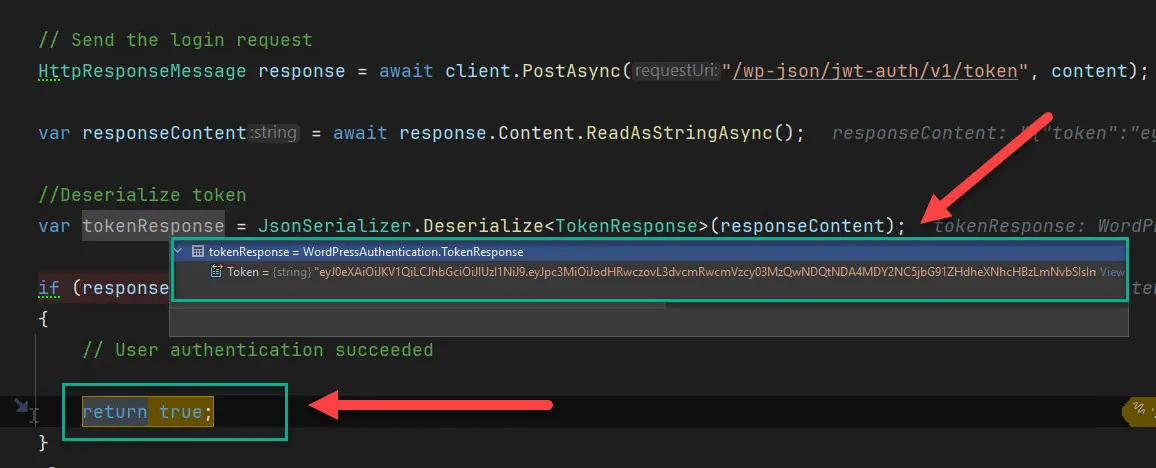
Successful authentication inspected at runtime. The debugger shows that WordPress accepted the supplied credentials and returned a token response from the JWT endpoint. This confirms that credential validation occurred on the WordPress side.

Successful xUnit authentication test output. The assertion passes when ValidateUserAsync returns true for valid WordPress credentials, demonstrating the end-to-end integration from the .NET test to the WordPress JWT endpoint.
CAPTCHA, Login Protection, and REST Authentication
A CAPTCHA shown on the normal WordPress login form does not automatically mean the JWT REST endpoint will fail. The relevant question is whether a security plugin, WAF, rate limiter, or custom authentication hook also intercepts or blocks /wp-json/jwt-auth/v1/token.
If automated authentication fails while normal WordPress login works, inspect the REST response and security logs before disabling protections. For development, prefer a narrowly scoped exception for the required API endpoint or test environment rather than switching off CAPTCHA site-wide.
Check whether the JWT endpoint is reachable and returns a WordPress/JWT error rather than a challenge page.
Review WordPress security plugins, hosting WAF rules, reverse proxies, and rate limits.
Keep brute-force protection and rate limiting in place for production authentication endpoints.
Re-test the integration after WordPress or security-plugin upgrades.
Production Considerations
The core integration is small, but authentication is a security boundary. Before using the pattern beyond a controlled integration, harden the surrounding implementation.
Always use HTTPS. The request contains a username and password.
Do not embed credentials. Use secure configuration or a secrets store for test identities and application secrets.
Do not log passwords. Redact credentials from application, CI, and diagnostic output.
Handle non-success responses explicitly. Distinguish invalid credentials from connectivity, configuration, rate-limit, and server failures.
Use the JWT deliberately. If the application needs authenticated WordPress API access, model token expiration and storage rather than returning only a boolean.
Reuse HTTP infrastructure. In a production .NET application, manage
HttpClientthrough the application's HTTP client infrastructure rather than treating the sample as the final architecture.
With those boundaries in place, the JWT token endpoint provides a straightforward bridge when WordPress must continue to authenticate users while a .NET application participates in the workflow.


