
Introduction
Version scope
This guide covers the classic ASP.NET MVC / .NET Framework System.Web.Optimization pipeline. ASP.NET Core uses a different asset optimization approach.
Getting Started: Setting Up Your Project
Before you begin, make sure your classic ASP.NET web project includes the Microsoft.AspNet.Web.Optimization package. If it is missing, install it with NuGet:
Install-Package Microsoft.AspNet.Web.OptimizationOnce installed, you can configure the JavaScript and CSS bundles used by the application.
Step 1: Create the BundleConfig
In the App_Start folder, create BundleConfig.cs if the project does not already contain it. This gives you one place to register and configure your bundles.
public class BundleConfig
{
   public static void RegisterBundles(BundleCollection bundles)
   {
      // Define your bundles here
   }
}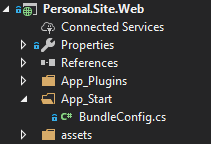
BundleConfig file in ASP .NET project structure
Step 2: Design Your Bundles
Group CSS and JavaScript files into logical bundles. For example, keep global styles together and create page-specific script bundles only where they are needed. Microsoft also recommends partitioning bundles according to the pages that actually use them.
public class BundleConfig
{
   public static void RegisterBundles(BundleCollection bundles)
   {
      ScriptBundle scriptBundle = new ScriptBundle("~/bundles/master/js");

      scriptBundle
         .Include("~/assets/js/jquery.js")
         .Include("~/assets/js/plugins.js")
         .Include("~/assets/js/functions.js");

      bundles.Add(scriptBundle);

      StyleBundle styleBundle = new StyleBundle("~/bundles/master/css");

      styleBundle
         .Include("~/assets/css/plugins.css")
         .Include("~/assets/css/style.css")
         .Include("~/assets/css/custom.css");

      bundles.Add(styleBundle);

      BundleTable.EnableOptimizations = true; // Enable optimization
   }
}
ScriptBundle handles JavaScript and StyleBundle handles CSS. The virtual paths, such as ~/bundles/master/js, become the bundle references used in your views.
Step 3: Enable Optimization for BundleTable
By default, ASP.NET controls bundling and minification through the debug attribute in Web.config.
<system.web>
     <compilation debug="false" />
</system.web>
With debug="false", bundling and minification are enabled. With debug="true", they are disabled.
You can explicitly force optimization in code:
BundleTable.EnableOptimizations = trueImportant
BundleTable.EnableOptimizations = true forces bundling and minification even when debug="true". You do not need both settings to enable optimization - use EnableOptimizations when you intentionally want to override the Web.config behavior.
Step 4: Implement Bundles in Razor Views
Use @Scripts.Render and @Styles.Render to output registered bundles. If the namespace is not already available to your views, add it to ~/Views/Web.config:
<add namespace="System.Web.Optimization"/>Then reference your bundles in the layout or Razor view:
@using System.Web.Optimization;

<!DOCTYPE html>
<html lang="en-US">
<head>
    @Styles.Render("~/bundles/master/css")
</head>
<body>
    @RenderBody()

    @Scripts.Render("~/bundles/master/js")
</body>
</html>
Step 5: Bundle Versioning and Browser Caching
ASP.NET provides built-in cache busting for optimized bundles. When bundling and minification are enabled, Scripts.Render and Styles.Render generate a single bundle URL with a version token. A generated stylesheet reference can look like this:
<link href="/bundles/master/css?v=rJwD8GQBqCoQ6sc6KrlHuWYflkjwRDAm2RK3fPv7aOk1" rel="stylesheet"/>The v value identifies the current bundle content. If any file included in the bundle changes, the ASP.NET optimization framework generates a new token. The URL therefore changes and the browser requests the updated bundle instead of continuing to use the previously cached version.
With optimization enabled: you normally do not need an additional last-modified token. ASP.NET already versions the generated bundle URL.
Cache Busting When Optimization Is Disabled
When optimization is disabled, the Razor helpers render the source files separately instead of returning one combined bundle URL. For example:
<script src="/assets/js/jquery.js"></script>
<script src="/assets/js/plugins.js"></script>
<script src="/assets/js/functions.js"></script>
In this scenario, adding a version token to each individual file can be useful when you want to make sure that browsers or intermediate caches request the updated CSS or JavaScript after a file changes.
Adding a Last-Modified Token to Individual Files
The following extension adds the physical file's last-write timestamp to the URL of each file rendered from the bundle:
internal static class BundleExtensions
{
    public static Bundle WithLastModifiedToken(this Bundle bundle)
    {
        bundle.Transforms.Add(new LastModifiedBundleTransform());

        return bundle;
    }

    private sealed class LastModifiedBundleTransform : IBundleTransform
    {
        public void Process(BundleContext context, BundleResponse response)
        {
            foreach (var file in response.Files)
            {
                var physicalPath = HostingEnvironment.MapPath(file.IncludedVirtualPath);

                var lastWrite = File
                    .GetLastWriteTimeUtc(physicalPath)
                    .Ticks
                    .ToString();

                file.IncludedVirtualPath = string.Concat(
                    file.IncludedVirtualPath,
                    "?v=",
                    lastWrite);
            }
        }
    }
}
Credit
This technique is based on a solution shared by Ranjeet Patil on Stack Overflow. His example uses BundleTable.EnableOptimizations = false so that the individual files are rendered and can receive their own last-modified tokens.
Register the bundles with the extension:
bundles.Add(scriptBundle.WithLastModifiedToken());
bundles.Add(styleBundle.WithLastModifiedToken());
With optimization disabled, the resulting URLs can look like this:
<script src="/assets/js/jquery.js?v=638907428410000000"></script>
<script src="/assets/js/plugins.js?v=638907429120000000"></script>
The token is derived from each file's last-write timestamp. When a physical file changes, its timestamp changes, which changes the URL and causes the browser to request the updated asset.
Complete BundleConfig Example with LastModifiedBundleTransform
The important detail in this example is that optimization is disabled. This is what makes Scripts.Render and Styles.Render output the individual source files to which the transform adds the timestamp.
public class BundleConfig
{
	public static void RegisterBundles(BundleCollection bundles)
	{
		ScriptBundle scriptBundle = new ScriptBundle("~/bundles/master/js");

		scriptBundle
			.Include("~/assets/js/jquery.js")
			.Include("~/assets/js/plugins.js")
			.Include("~/assets/js/functions.js");

		bundles.Add(scriptBundle.WithLastModifiedToken());

		StyleBundle styleBundle = new StyleBundle("~/bundles/master/css");

		styleBundle
			.Include("~/assets/css/plugins.css")
			.Include("~/assets/css/style.css")
			.Include("~/assets/css/custom.css");

		bundles.Add(styleBundle.WithLastModifiedToken());

		BundleTable.EnableOptimizations = false;
	}
}
Choose the mechanism that matches the output you want. With optimization enabled, use ASP.NET's built-in content-based bundle token. With optimization disabled, LastModifiedBundleTransform can add cache-busting tokens to the individually rendered files.
Step 6: Initialize Bundling in Global.asax
Register your bundles when the application starts:
protected void Application_Start(Object sender, EventArgs e)
{
    BundleConfig.RegisterBundle(BundleTable.Bundles);
}
Note the method name RegisterBundles. It should match the method declared in BundleConfig.
Resulting Optimized HTML Output
Without bundling, the page can reference each stylesheet and script individually:
<!DOCTYPE html>
<html lang="en-US">
<head>
    <!-- Individual CSS files -->
    <link href="/assets/css/plugins.css" rel="stylesheet">
    <link href="/assets/css/style.css" rel="stylesheet">
    <link href="/assets/css/custom.css" rel="stylesheet">
</head>
<body>
    <!-- Individual JS files -->
    <script src="/assets/js/jquery.js"></script>
    <script src="/assets/js/plugins.js"></script>
    <script src="/assets/js/functions.js"></script>
</body>
</html>
With optimization enabled, the helpers render the registered bundles instead:
<!DOCTYPE html>
<html lang="en-US">
<head>
    <!-- Combined and minified CSS bundle -->
    <link href="/bundles/master/css?v=unique-version" rel="stylesheet">
</head>
<body>
    <!-- Combined and minified JS bundle -->
    <script src="/bundles/master/js?v=unique-version"></script>
</body>
</html>
Bundling reduces the number of asset requests, while minification removes unnecessary characters from CSS and JavaScript to reduce transferred file size.
Official References
Conclusion: Fast, Efficient, and Ready for Production
Classic ASP.NET bundling and minification provide a straightforward way to combine CSS and JavaScript, reduce transferred asset size, and switch between development-friendly and optimized production output.
Keep bundles focused on the assets a page actually needs, register them during application startup, and rely on the framework's generated bundle version when you need browser cache invalidation.


